A silent montage of actual HanziGlass recordings. Pinyin appears above Chinese in a scrolling Rednote feed, beside album and song titles in Spotify, and above comments on a Chinese film page. The original Chinese stays visible.
Your Chinese reading companion for Mac
Read Chinese.
Stay in the flow.
Pinyin and English, right beside the original words.
In the apps you already love.
Unnotarized beta 1.0.1 · macOS 26 or later
First launch needs approval · Setup guideLess switching. More reading.
Right where you left off.
Find your words.
Select Chinese text in a supported Mac app. Keep reading in the place you already are.
Press ⌃ ⌥ H.
A glass reader opens beside your selection, with the original Chinese and tone-marked pinyin.
Make the meaning clear.
Add English when you need it. Show or hide pinyin. The original Chinese always stays visible.
Want to read more? Turn on Translate Active Window from the menu bar to add pinyin and English beside visible Chinese, including image text.

Made for the way you read
A clearer view of Chinese.
A small companion in your Mac’s menu bar.
Unnotarized beta 1.0.1 · macOS 26 or later
First launch needs approval · Setup guideSign in or create an account in the app to start.
A few steps. Then you’re ready to read.
Set up HanziGlass on your Mac.
This beta is not Developer ID signed or notarized by Apple. macOS will ask you to approve its first launch. Reading permissions are a separate step.
Start here: Download and open the DMG. In the window that opens, drag HanziGlass onto the Applications shortcut. Eject the HanziGlass disk image, then open HanziGlass from Applications. Requires macOS 26 or later, on Apple silicon or Intel.
-
01 · First launch
Allow the beta to open.
If macOS says it can’t verify HanziGlass, dismiss the alert. In System Settings → Privacy & Security, scroll down to Security and click Open Anyway for HanziGlass. Confirm with your password or Touch ID if asked, then choose Open.
Privacy & Security → Open Anyway
Only approve a download you trust from hanziglass.com. This creates an exception for this app. Then sign in or create an account in HanziGlass.
Apple’s guide to opening downloaded apps ↗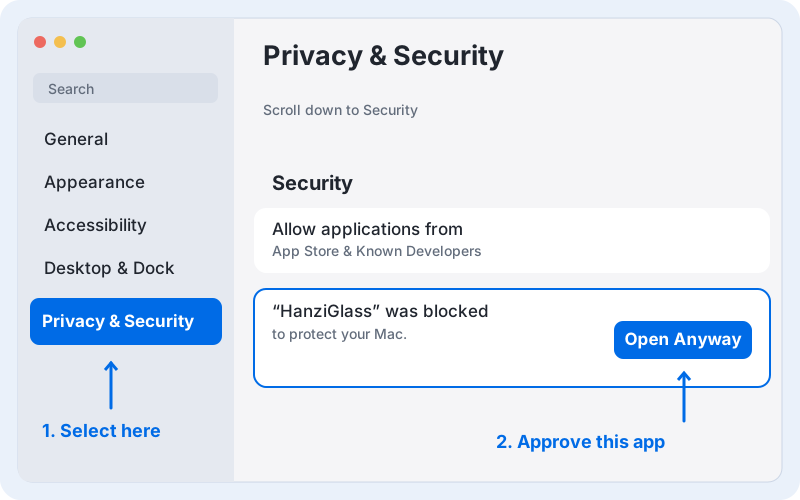 Illustrated guide · Click to enlarge ↗
-
02 · Selection reader
Allow selected-text reading.
In HanziGlass’s menu bar menu, choose Allow Accessibility…. Open System Settings → Privacy & Security → Accessibility and turn on HanziGlass.
Privacy & Security → Accessibility
This lets HanziGlass read the Chinese text you select in supported apps. Return to your reading, select some Chinese, and press Control–Option–H.
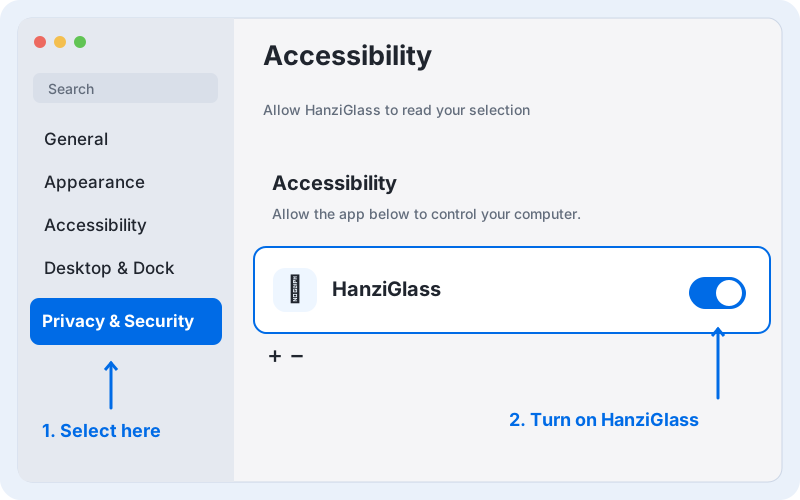 Illustrated guide · Click to enlarge ↗
-
Optional · Active-window reading
Read the whole window, too.
Turn on Translate Active Window in HanziGlass’s menu bar menu. Follow the permission prompt, then open System Settings → Privacy & Security → Screen & System Audio Recording and turn on HanziGlass. If macOS asks you to quit and reopen, do so.
Privacy & Security → Screen & System Audio Recording
This mode recognizes Chinese in the active window, including images. HanziGlass does not capture audio. Window captures are processed on your Mac, stay in memory, and are never saved or uploaded. Selection reading works without this permission.
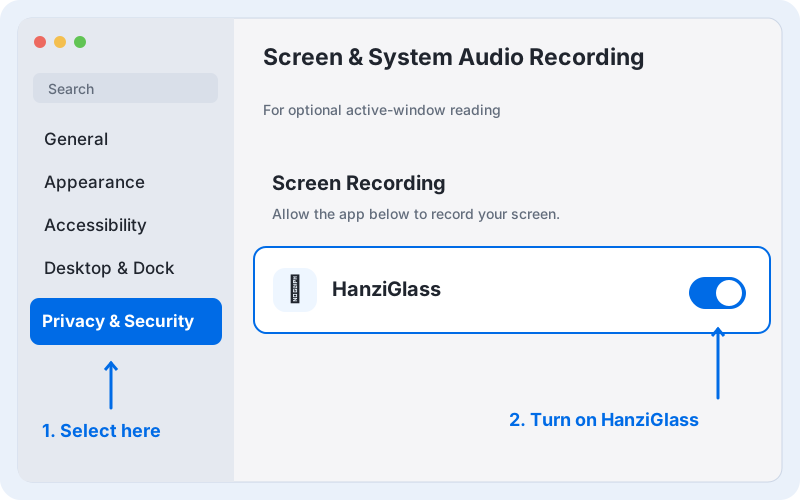 Illustrated guide · Click to enlarge ↗
A little help getting started.
Updates say the app is running from its download location.
Quit HanziGlass. In Finder, drag the app into Applications; if you opened a DMG, use its Applications shortcut and then eject the disk image. Open the installed copy from Applications and choose Check for Updates again. Do not run the app from Downloads or directly from the disk image.
I don’t see “Open Anyway.”
Try opening HanziGlass from Applications first, then return to Privacy & Security and scroll down to Security. On a Mac managed by work or school, your administrator may control which apps can open.
HanziGlass isn’t in the permission list.
Open HanziGlass and request the permission using its menu bar menu first. For Accessibility, you can also click the + button in System Settings and choose HanziGlass from Applications. Check that you’re enabling the installed copy you use.
I allowed access, but reading still doesn’t work.
Quit and reopen HanziGlass, check that you’re signed in and Selection reader is enabled, then try selecting Chinese text in a supported app. If you replaced the beta with an update, check its permissions again. macOS may ask you to reapprove access.
These images are simplified illustrations of macOS settings; wording may vary. Still stuck? Contact support.
Your reading stays on your Mac.
Chinese recognition, pinyin, and translation run on device. Active-window captures stay in memory and are never saved or uploaded. Snapshots include portions of that window covered by other windows. Turn window translation off before opening sensitive content or sharing your screen. macOS asks for Accessibility permission for selection reading, and Screen Recording permission for the optional active-window mode.
Your account service stores your email and account identity separately from your reading. Language resources may need an initial download.